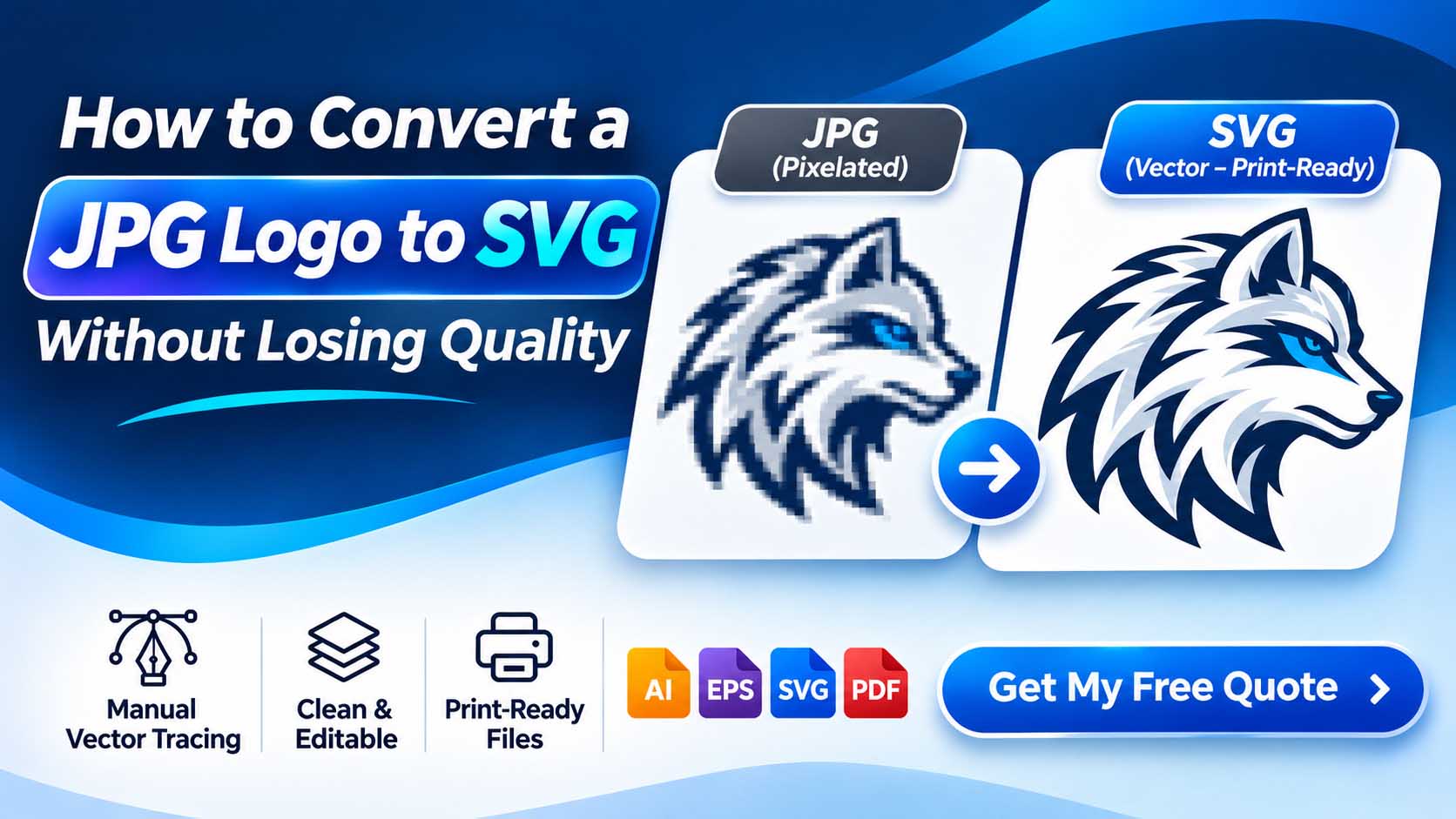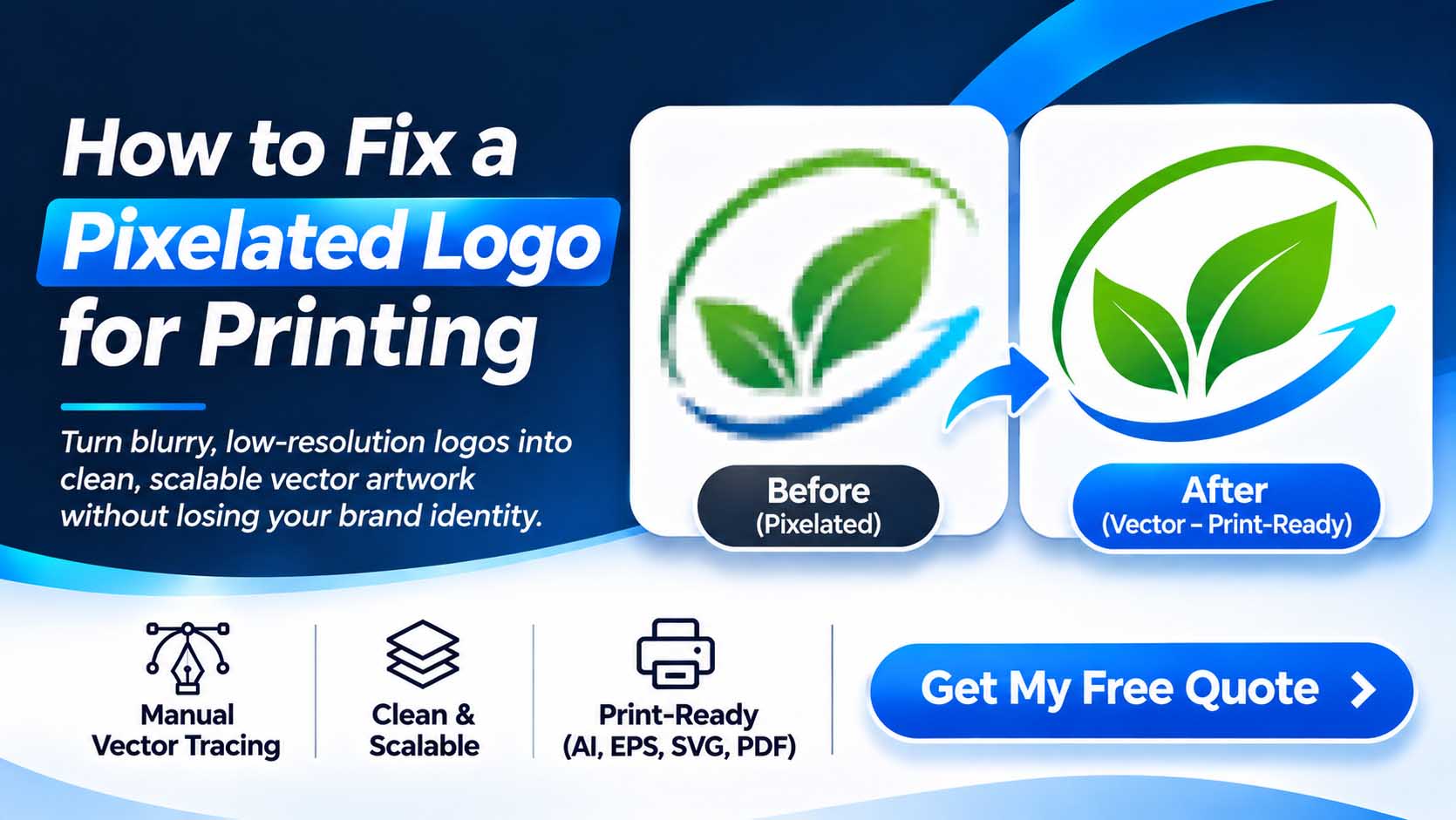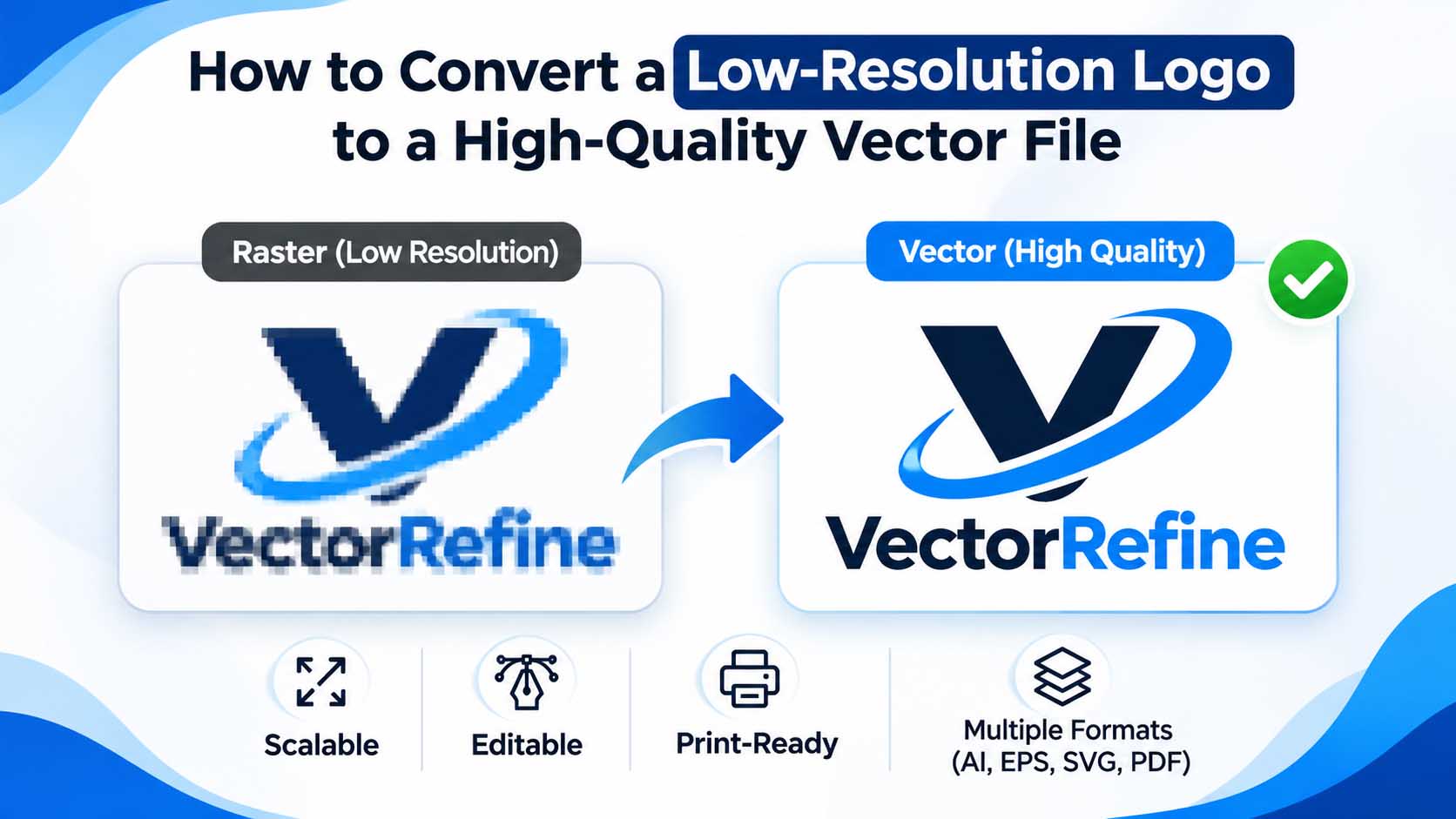
You have a PNG logo that looks perfectly fine on your computer. Then your printing company asks for an AI, EPS, or SVG file.
Suddenly, that PNG isn’t enough.
Maybe the edges become blurry when you enlarge it. Perhaps the background isn’t transparent, or the printer says the artwork isn’t suitable for production.
This is where PNG to vector conversion becomes important.
Converting a PNG into a genuine vector file gives you more flexibility to resize, edit, and prepare your artwork for different applications. But there’s a big difference between simply saving an image as SVG and rebuilding it with clean, editable vector paths.
In this guide, we’ll explain how PNG to vector conversion works, when manual tracing is worth choosing, and what you should check before sending artwork to a printer.
What Is PNG to Vector Conversion?
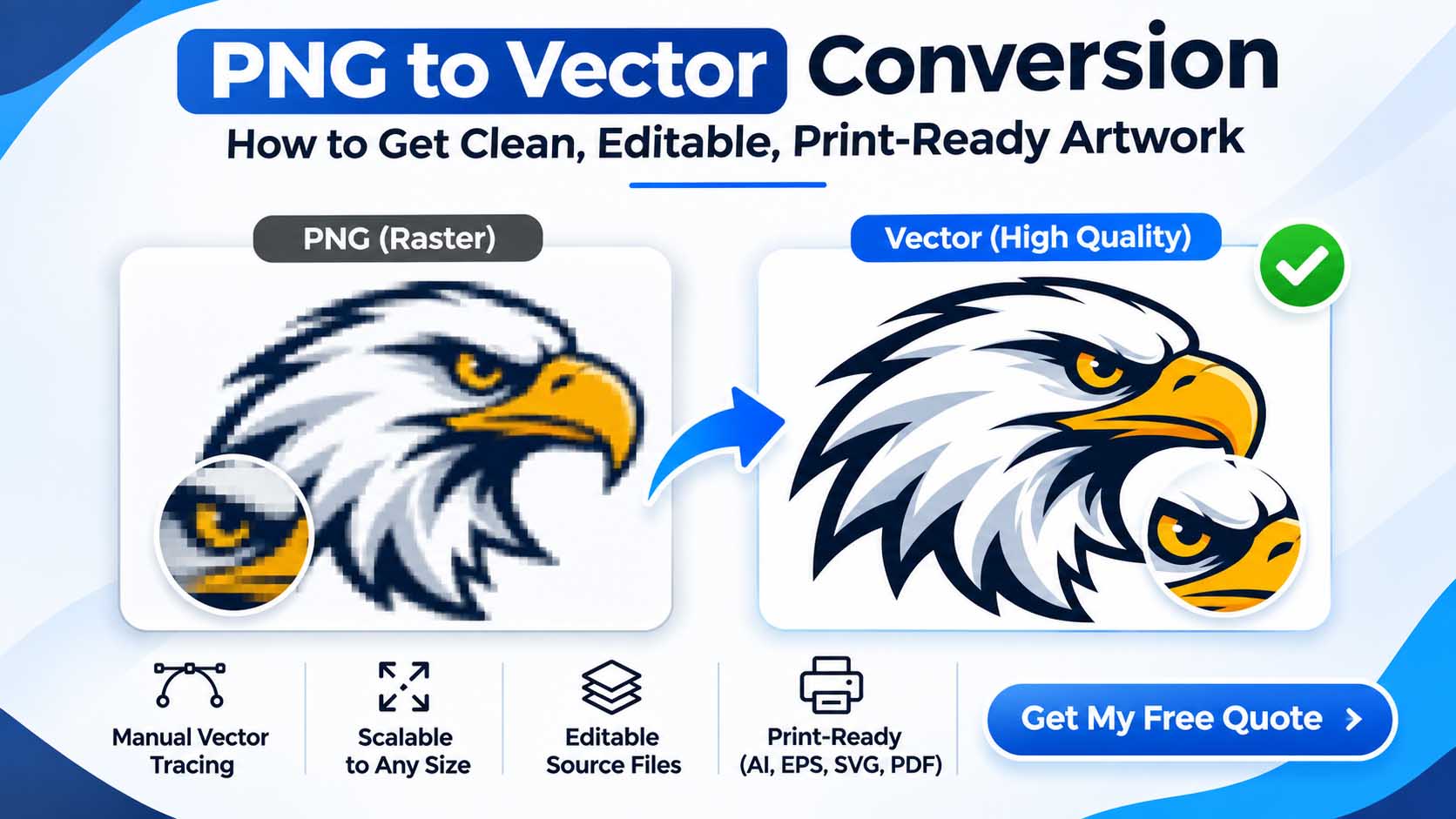
PNG to vector conversion is the process of transforming a pixel-based PNG image into artwork made from vector paths.
A PNG is a raster image. It stores visual information as pixels, which means its quality depends on the original image dimensions.
Vector artwork works differently. It uses mathematically defined shapes, lines, and curves that can be scaled without introducing pixelation.
For example, a 300-pixel-wide PNG logo might look sharp on a website but become blurry when enlarged for a banner.
A properly reconstructed vector version can be scaled to different sizes while maintaining smooth edges.
This makes vector artwork particularly useful for logos, illustrations, icons, typography, and production graphics.
If you’re preparing an existing logo for printing, explore VectorRefine’s manual vector conversion services.
For a technical introduction to vector graphics, the W3C SVG specification explains how scalable vector artwork is represented.
Why Would You Need to Convert PNG to Vector?
Not every PNG needs conversion.
If you’re using a high-resolution PNG for a website or a simple digital presentation, the existing image may already be suitable.
However, conversion becomes valuable when you need more flexibility or precise editing.
1. Your Logo Looks Blurry When Enlarged
A small PNG has limited pixel information. Enlarging it may create jagged edges or visible pixelation.
Reconstructing the logo as vector artwork allows it to scale more cleanly.
2. Your Printer Requests Vector Artwork
Printing companies frequently request AI, EPS, or vector PDF files because they can work more easily with scalable shapes and defined colors.
You can learn about professional vector design tools through Adobe Illustrator.
3. You Need to Edit Individual Elements
A flattened PNG doesn’t provide convenient access to separate logo elements.
With properly organized vector artwork, you can adjust colors, shapes, and layouts individually.
4. You’re Preparing Artwork for Vinyl Cutting
Vinyl cutting workflows often require clean, closed paths with suitable spacing.
A raster PNG may need to be reconstructed before the cutting software can use it effectively.
5. You Want a Reusable Master Logo
A well-prepared vector master can support future branding projects without requiring the logo to be rebuilt repeatedly.
If your original design files have been lost, a professional logo vectorization service can help reconstruct your existing artwork.
PNG vs SVG vs AI vs EPS: What’s the Difference?
Understanding file formats helps you choose the correct deliverables.
| Format | Type | Common Use |
|---|---|---|
| PNG | Raster | Websites, transparent previews |
| JPG | Raster | Digital images and previews |
| SVG | Vector-capable | Websites, icons, scalable artwork |
| AI | Vector-capable | Editable Illustrator master |
| EPS | Vector-capable | Compatible printing workflows |
| Raster/vector-capable | Proofs, printing, document sharing |
The key phrase here is vector-capable.
An SVG or PDF file can contain embedded raster images. Simply saving a PNG inside one of these formats doesn’t automatically create genuine vector paths.
For more background, visit MDN’s SVG documentation.
Adobe also explains available file formats in its Illustrator export documentation.
How to Convert PNG to Vector in Adobe Illustrator
There are two main approaches: automatic tracing and manual reconstruction.
Let’s look at both.
Method 1: Automatic Image Tracing
Adobe Illustrator includes an Image Trace feature that can convert raster images into editable vector paths.
The basic workflow is straightforward:
- Open Adobe Illustrator.
- Create a new document.
- Place your PNG image.
- Select the image.
- Open the Image Trace panel.
- Choose suitable tracing settings.
- Adjust the result.
- Expand the trace when needed.
- Inspect and clean the paths.
- Export the final artwork.
You can follow Adobe’s official Image Trace instructions.
Automatic tracing can be useful for suitable illustrations, silhouettes, and simple artwork.
However, it doesn’t always preserve the exact geometry of an existing logo.
Method 2: Manual Vector Tracing
Manual vector tracing involves rebuilding the original artwork with carefully constructed vector paths.
Instead of relying on automatic pixel detection, a designer examines the reference image and recreates its shapes.
This approach is especially valuable when the artwork includes:
- Custom typography
- Detailed logos
- Geometric symbols
- Precise spacing
- Symmetrical shapes
- Curved lettering
- Small production details
At VectorRefine, our approach focuses on manual Adobe Illustrator reconstruction rather than automatic tracing.
The objective is to preserve the original artwork while creating cleaner and more practical vector files.
Step-by-Step Manual PNG to Vector Conversion
Step 1: Review the Original PNG
Before drawing anything, examine the source image.
Check its dimensions, clarity, proportions, colors, and typography.
Look for missing details, compression artifacts, or uneven edges.
If several versions are available, use the clearest reference.
Step 2: Place the PNG on a Reference Layer
Import the image into Adobe Illustrator and position it on a dedicated layer.
Lock the reference layer to prevent accidental changes.
This makes it easier to compare the reconstructed artwork with the original.
Step 3: Rebuild the Main Shapes
Use the Pen Tool and Bézier curves to reconstruct the logo’s outlines.
Anchor points should be placed deliberately.
Using too many points can create uneven curves and make the artwork difficult to edit.
Using too few can distort the original design.
The goal is accurate geometry with manageable path complexity.
Adobe’s Pen Tool documentation explains the underlying drawing techniques.
Step 4: Reconstruct the Typography
Typography often requires special attention.
Even when two fonts look similar, differences in character shapes, kerning, and proportions can affect a logo’s identity.
If the original font is unavailable, custom lettering may need to be recreated manually.
The Adobe Fonts library can be useful when researching typefaces.
Step 5: Match Colors and Alignment
Compare the vector reconstruction with the reference image.
Check the spacing between elements, line thicknesses, angles, and proportions.
Use known brand color specifications when available.
For projects involving standardized print colors, Pantone provides resources about color systems.
Step 6: Clean the Vector Paths
Inspect the artwork at high zoom.
Look for:
- Unnecessary anchor points
- Open paths
- Overlapping objects
- Uneven curves
- Stray shapes
- Incorrect fills
- Misaligned elements
Well-organized paths make future editing easier.
Step 7: Test the Artwork at Multiple Sizes
A logo should work at the sizes required for its intended applications.
Check small lettering, narrow gaps, and thin lines.
Some elements may need a production-specific alternative version, especially for embroidery or cutting.
Step 8: Export the Final Files
Save an editable master file and export the formats required by the client or production provider.
Common deliverables include AI, EPS, SVG, vector PDF, and transparent PNG previews.
For more information on vector editing, explore the Inkscape learning resources.
Manual Vector Tracing vs Auto-Tracing
Both approaches have legitimate uses, but they solve different problems.
| Feature | Manual Tracing | Auto-Tracing |
|---|---|---|
| Shape Accuracy | Directly controlled | Depends on source image |
| Anchor Points | Deliberate placement | Can be excessive |
| Typography | Can be reconstructed precisely | May become distorted |
| Editing | Organized individually | Often needs cleanup |
| Speed | Depends on complexity | Usually faster initially |
| Best Use | Accuracy-critical artwork | Suitable quick conversions |
For a simple illustration, automatic tracing may be sufficient.
For a company logo that must remain visually consistent, manual reconstruction often provides better control.
The choice should depend on the source image and the final production requirements, not simply the conversion speed.
Need Professional PNG to Vector Conversion?
Get clean, editable, print-ready vector artwork. Carefully recreated by hand in Adobe Illustrator.
Get My Free QuoteWhy Online PNG to SVG Converters May Not Be Enough
Searching for a free PNG to SVG converter can return many online tools.
Some generate vector paths automatically. Others may embed the raster image inside an SVG container.
The resulting file may technically be an SVG without containing the clean, editable shapes you expected.
Before using a converted file for production, inspect it in a vector editing application.
Check whether individual paths can be selected and edited.
Also review the edges, typography, spacing, and path structure.
A file extension alone isn’t proof of professional vector quality.
How to Tell Whether Your SVG Is a True Vector
Open the file in Adobe Illustrator, Inkscape, or another compatible editor.
Zoom in significantly.
If the artwork contains genuine vector shapes, the edges should remain smooth.
Select individual objects and inspect their paths.
If the entire design behaves like a single embedded image, the file may still contain raster artwork.
You can also inspect SVG structure using the MDN SVG image reference to understand how raster images may be included in SVG documents.
Is PNG to Vector Conversion Suitable for Printing?
Yes, particularly for artwork with clear shapes, logos, and typography.
However, converting to vector doesn’t automatically make every file production-ready.
Different printing processes have different requirements.
Screen Printing
Artwork may need separated colors, suitable line thicknesses, and production-specific preparation.
DTF Printing
High-resolution raster artwork can also work well for DTF printing. Vector files are useful for editing, resizing, and preparing clean source artwork.
Vinyl Cutting
Cutting workflows may require closed paths, suitable minimum detail sizes, and properly organized shapes.
Large-Format Printing
Vector logos can be scaled without introducing raster pixelation, making them useful for signage and banners.
Embroidery
Vector artwork can help prepare the design, but embroidery requires a separate digitizing process to create stitch instructions.
Before production, confirm the technical specifications with your printer or manufacturer.
What Makes Professional Vector Artwork Different?
A professional vector file should be more than visually similar to the original.
It should also be structured for practical use.
Important qualities include:
Accurate reconstruction: Shapes, lettering, and proportions closely match the approved artwork.
Smooth curves: Bézier paths are constructed with controlled anchor points.
Clean geometry: Unnecessary objects and stray paths are removed.
Editable elements: Important design components can be modified individually.
Appropriate color setup: Colors are prepared for the intended application.
Correct export formats: Files are supplied according to production requirements.
To see how VectorRefine presents vector artwork, visit our Our Work page.
Common PNG to Vector Conversion Mistakes
Saving PNG as SVG Without Rebuilding It
Changing the container format doesn’t necessarily convert pixels into paths.
Using Too Many Anchor Points
Excessive points can make curves irregular and editing unnecessarily complicated.
Ignoring the Original Typography
Replacing custom lettering with an approximate font may alter the logo.
Forgetting About Transparency
A white background may be part of the raster image rather than a separate editable object.
Using the Wrong Color Mode
Screen colors and printed colors may differ, especially without an appropriate color workflow.
Skipping the Final Inspection
Always examine the exported files, not just the Illustrator document.
Need Professional PNG to Vector Conversion?
Get clean, editable, print-ready vector artwork. Carefully recreated by hand in Adobe Illustrator.
Get My Free QuoteHow VectorRefine Helps with PNG to Vector Conversion
At VectorRefine, we focus on professional manual vector artwork for businesses, creative agencies, and print professionals.
Our work centers on rebuilding existing logos and illustrations using Adobe Illustrator.
Rather than relying on automatic tracing, we aim to preserve the original artwork while improving the technical quality of the vector construction.
Our services can support projects involving:
- PNG to vector conversion
- Logo vectorization
- JPG to SVG conversion
- Manual vector tracing
- Existing logo refinement
- Print-ready vector artwork
- Artwork cleanup
Learn more about our services, review our working process, or explore our portfolio.
Need Clean, Editable Vector Artwork?
Have a blurry PNG logo or an image your printer cannot use?
We can review your existing artwork and help you determine the appropriate conversion approach.
Upload your logo or artwork, explain your requirements, and request a quote for professional manual vector conversion.
Frequently Asked Questions
Can I convert PNG to SVG without losing quality?
A PNG can be reconstructed into genuine vector paths, allowing the resulting artwork to scale without pixelation. However, the accuracy of the conversion depends on the source image and reconstruction method.
Is PNG to vector conversion free?
Some software and online tools provide free conversion options. Professional manual vector reconstruction generally requires design work and may involve a service fee.
Can Adobe Illustrator convert PNG to vector?
Yes. Illustrator supports Image Trace and manual vector drawing tools. The best approach depends on the artwork’s complexity and required accuracy.
Is SVG better than PNG for logos?
SVG is often preferable for scalable logos and icons. PNG remains useful for raster previews, transparency, and applications that don’t support SVG.
Can a blurry PNG be converted into a sharp logo?
In many cases, yes. A designer can reconstruct visible shapes as vector paths. Missing or unclear details may require a better reference or client confirmation.
Which is better for printing: AI, EPS, or SVG?
The answer depends on the printing workflow. AI, EPS, and vector PDF are common options, while some providers also accept SVG.
Does embroidery require a vector file?
Vector artwork can be useful during preparation, but embroidery machines generally require digitized stitch files rather than standard SVG or AI files.
How do I know whether my converted logo is editable?
Open the file in a vector editor and check whether its individual shapes and paths can be selected and modified.
Final Thoughts
PNG to vector conversion can make an existing logo far more useful across different design and production workflows.
The important part is understanding what a genuine vector conversion involves.
Simply changing the file extension doesn’t rebuild the artwork. Accurate conversion requires proper vector paths, careful attention to shapes, and quality checks.
If you need to preserve an existing logo for future printing, signage, or branding, manual vector reconstruction can provide a reliable editable master.
At VectorRefine, we focus on clean, carefully constructed vector artwork that supports professional use.
Ready to convert your PNG into a professional vector file?
Get My Free Quote and share your artwork for review.