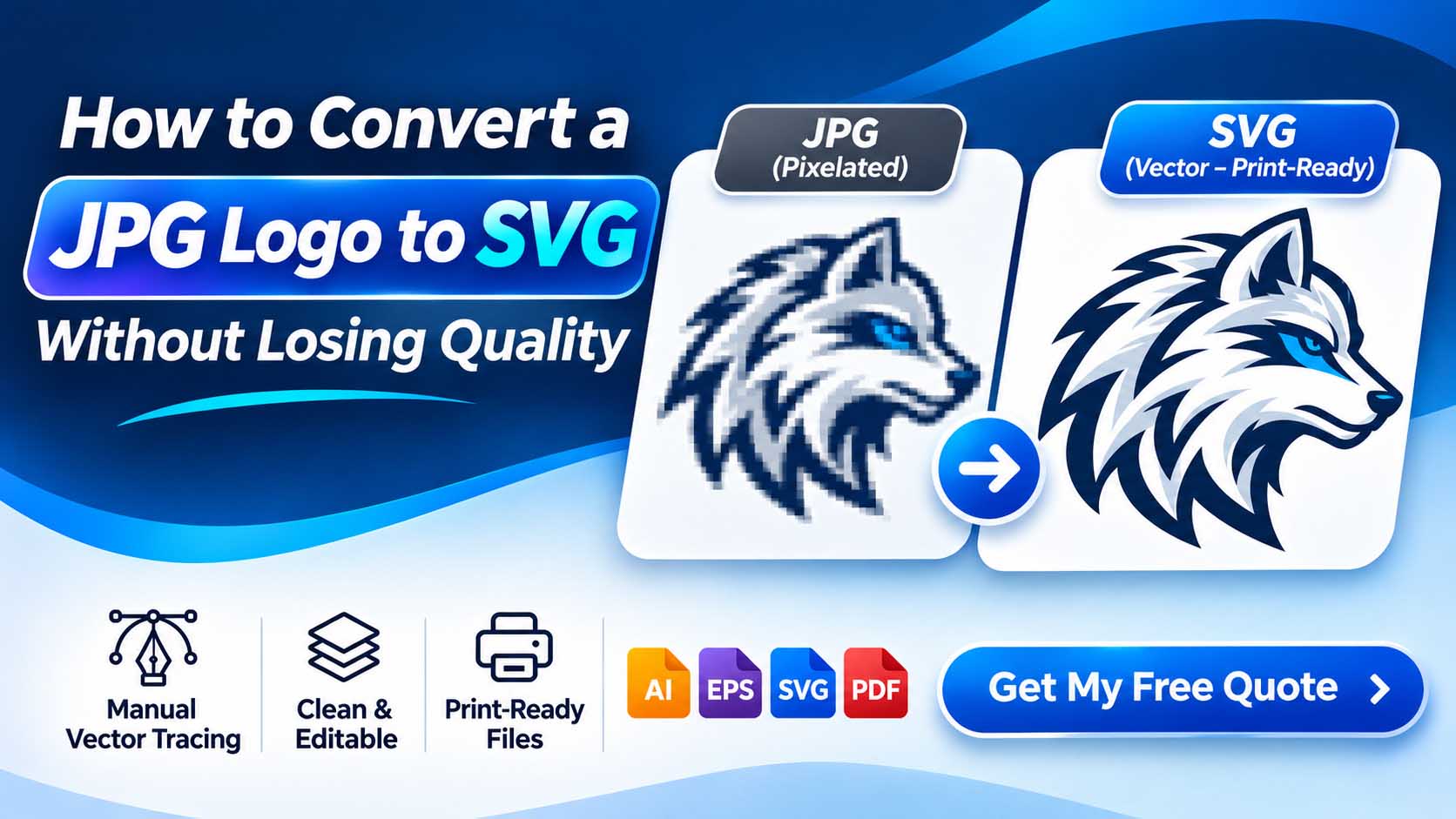
If you want to convert JPG logo to SVG, the most important thing to understand is that changing the file extension alone will not create genuine vector artwork. A JPG logo is made of pixels, while a properly constructed SVG logo uses scalable vector paths that can be edited and resized without pixelation.
Many businesses discover this problem when preparing logos for printing, website graphics, signage, packaging, or promotional products. Their original JPG may look fine on a screen, but it becomes blurry when enlarged.
Fortunately, a JPG logo can often be professionally reconstructed into clean, editable SVG artwork without changing its original design.
In this guide, we’ll explain how JPG-to-SVG conversion works, how to rebuild a logo in Adobe Illustrator, and why manual vector tracing is often the preferred approach when accuracy matters.
What Is JPG to SVG Conversion?
JPG to SVG conversion is the process of turning a raster image into a scalable vector graphic.
A JPG stores visual information as pixels. An SVG can represent artwork using mathematical paths, shapes, and text.
This difference affects how the artwork behaves when resized.
A small JPG may become blurry when enlarged, but a properly constructed SVG can retain smooth edges at different dimensions.
The W3C SVG specification explains how SVG represents two-dimensional graphics.
However, not every SVG file contains genuine vector artwork. An SVG can also include embedded raster images.
For professional logo conversion, the goal should be to reconstruct the original design using editable paths, not simply place a JPG inside an SVG container.
Why Should You Convert a JPG Logo to SVG?
There are several practical reasons to convert a logo into vector artwork.
1. Scale Without Pixelation
A properly reconstructed SVG can be resized without introducing raster pixelation.
This makes it useful for different branding applications.
2. Edit Individual Elements
When a logo is built with editable paths, designers can adjust shapes, spacing, and colors without rebuilding the entire artwork.
3. Prepare Artwork for Printing
Many printing workflows benefit from clean vector source files.
For information about common professional design workflows, visit Adobe Illustrator.
4. Create Website Graphics
SVG is widely supported in modern browsers and can be useful for responsive logos and interface graphics.
Learn more through MDN’s SVG documentation.
5. Preserve a Reusable Master File
An editable vector master makes it easier to create future variations of the same logo.
For businesses working with printers, agencies, and manufacturers, this can simplify artwork preparation.
JPG vs SVG: What’s the Difference?
Understanding the difference between JPG and SVG helps you choose the correct format.
| Feature | JPG | SVG |
|---|---|---|
| Graphic type | Raster | Vector-capable |
| Enlarging | May pixelate | Vector paths remain sharp |
| Individual shapes | Not directly editable | Can be editable |
| Transparency | Not supported | Supported |
| Best use | Photos and raster images | Logos, icons, illustrations |
| Color editing | Pixel-based | Element-based when constructed appropriately |
| Production flexibility | Resolution-dependent | Depends on path construction and workflow |
A JPG can still be useful for digital previews and photography.
SVG is particularly helpful for logos with clearly defined shapes, typography, and flat colors.
Can You Convert a JPG Logo to SVG Without Losing Quality?
Yes, but the result depends on the method and source image.
If you have a clean, high-resolution JPG, some elements may be relatively easy to reconstruct.
If the original image is blurry, compressed, or distorted, the designer may need to interpret missing details.
There are two main approaches:
- Automatic image tracing
- Manual vector reconstruction
Both can produce vector paths, but they don’t always produce equally accurate results.
Method 1: Convert JPG to SVG Using Adobe Illustrator Image Trace
Adobe Illustrator includes an Image Trace feature that can convert raster artwork into vector shapes.
A typical workflow is:
- Open Adobe Illustrator.
- Create a new document.
- Place the JPG logo onto the artboard.
- Select the image.
- Open the Image Trace panel.
- Choose an appropriate tracing preset.
- Adjust tracing settings.
- Expand the traced result into vector paths.
- Clean up unwanted shapes and anchor points.
- Export the artwork as SVG.
Adobe provides official instructions for tracing raster images into vector artwork.
Limitations of Automatic Image Trace
Automatic tracing can be useful for certain illustrations and simple shapes.
However, it may struggle with:
- Small text
- Blurry edges
- Custom lettering
- Fine details
- Complex curves
- Low-resolution references
- Compression artifacts
It can also generate unnecessary anchor points and irregular geometry.
For accuracy-critical logos, these problems may require extensive manual cleanup.
Adobe discusses these issues in its Image Trace best practices and limitations.
Method 2: Convert JPG Logo to SVG Using Manual Vector Tracing
Manual vector tracing involves rebuilding the original logo using carefully constructed vector paths.
Instead of automatically converting every visible pixel boundary, the designer identifies the intended shapes and recreates them.
This is particularly useful when preserving an established brand identity.
At VectorRefine, we focus on manual Adobe Illustrator vector reconstruction rather than relying on automatic tracing.
Step 1: Import the Original JPG
Place the original image into Illustrator.
Position it on a dedicated reference layer and lock that layer.
This keeps the original artwork visible while you reconstruct the design.
Step 2: Analyze the Logo
Before drawing, examine the artwork.
Identify:
- Main shapes
- Lettering
- Curves
- Angles
- Color areas
- Spacing
- Alignment
- Symmetry
- Small details
If the source is blurry, compare any other available versions of the logo.
Step 3: Recreate the Main Shapes
Use the Pen Tool, Rectangle Tool, Ellipse Tool, and other appropriate drawing tools.
Build the logo with accurate, clean paths.
Avoid unnecessary anchor points, but don’t sacrifice accuracy just to reduce their number.
Adobe’s Pen Tool guide provides additional guidance.
Step 4: Rebuild the Typography
Typography is one of the most important parts of logo reconstruction.
If the original font is available, use it as a starting point.
If the lettering is customized, it may need to be recreated manually.
Pay attention to kerning, character widths, proportions, and unique letter shapes.
You can research typefaces using Adobe Fonts.
Step 5: Match the Original Colors
Use the original brand color specifications whenever possible.
These might include HEX, RGB, CMYK, or Pantone references.
If no approved color values exist, colors may need to be estimated from the best available reference.
For more information about standardized color references, visit Pantone.
Step 6: Refine the Vector Paths
Inspect the artwork at high zoom.
Check for:
- Uneven curves
- Unwanted overlaps
- Open paths
- Stray objects
- Incorrect proportions
- Misaligned lettering
- Excessive anchor points
A clean vector file should be accurate, organized, and practical to edit.
Step 7: Save an Editable Master
Before exporting SVG, save the reconstructed logo as an editable Illustrator file.
Organize important elements into logical groups or layers.
This gives you a master source for future changes.
Step 8: Export as SVG
Export the completed artwork in SVG format.
Choose settings appropriate for the intended application.
For website use, test the exported file in a browser.
For print production, confirm that the receiving software supports the SVG features used in the artwork.
Need Professional JPG to SVG Conversion?
Get clean, editable, scalable vector artwork. Manually reconstructed in Adobe Illustrator. No automatic tracing.
Get My Free QuoteManual Vector Tracing vs Automatic JPG to SVG Conversion
Both methods have legitimate uses.
The best choice depends on the artwork and required accuracy.
| Comparison | Manual Vector Tracing | Automatic Tracing |
|---|---|---|
| Shape reconstruction | Deliberate and controlled | Based on image analysis |
| Typography | Can be accurately rebuilt | May become distorted |
| Anchor points | Carefully positioned | May require cleanup |
| Brand consistency | Greater manual control | Depends on source quality |
| Initial processing | More time-intensive | Usually faster |
| Professional refinement | Built into the workflow | Often needed afterward |
For simple illustrations, automatic tracing may be sufficient.
For established logos with custom typography and precise geometry, manual reconstruction often offers better control.
How to Convert a Blurry JPG Logo to SVG
A blurry JPG creates an additional challenge because the original image may not contain enough detail to reproduce every element accurately.
In these situations, a professional designer may need to reconstruct the intended shapes.
The workflow typically includes:
- Reviewing the best available reference.
- Identifying recognizable shapes and lettering.
- Rebuilding the artwork manually.
- Correcting distorted curves.
- Matching spacing and proportions.
- Testing the finished vector.
- Exporting the required formats.
The objective is not to invent a new logo.
It is to reproduce the existing identity as faithfully as the available reference allows.
If your source image is heavily pixelated, see our guide on fixing a pixelated logo for printing.
How to Check Whether Your SVG Is a True Vector File
One of the biggest misconceptions about JPG-to-SVG conversion is that an SVG extension automatically guarantees editable vector artwork.
It doesn’t.
SVG documents can include embedded or linked raster images.
The MDN SVG image element reference explains how raster images can appear inside SVG documents.
To verify your file:
- Open the SVG in Adobe Illustrator or another compatible vector editor.
- Select individual shapes.
- Inspect the available paths and anchor points.
- Check whether the logo is simply one embedded raster image.
- Zoom in and examine the curves.
- Test whether individual colors and elements can be edited.
A properly reconstructed SVG should contain the intended editable vector elements.
Best SVG Export Settings for Logos
SVG export settings depend on where the artwork will be used.
SVG Profile and Compatibility
Use an SVG format compatible with your target application.
Decimal Precision
Choose enough precision to preserve the logo’s geometry without unnecessarily increasing file complexity.
Text Handling
For maximum visual consistency, convert final logo lettering to outlines when appropriate.
Keep an editable master containing live text if future typography changes may be required.
CSS and Styling
Choose a styling approach supported by the intended software.
Raster Images
Avoid unintentionally embedding the original JPG in place of reconstructed vector artwork.
Testing
Open the SVG in a browser and a compatible vector editor.
Compare it with the original reference.
For technical SVG information, consult the W3C SVG specification.
Need Professional JPG to SVG Conversion?
Get clean, editable, scalable vector artwork. Manually reconstructed in Adobe Illustrator. No automatic tracing.
Get My Free QuoteCommon JPG to SVG Conversion Mistakes
Mistake 1: Renaming the File Extension
Changing logo.jpg to logo.svg doesn’t convert the image into vector artwork.
Mistake 2: Embedding the JPG Inside an SVG
This creates an SVG container but does not make the embedded image scalable as vector paths.
Mistake 3: Ignoring Typography
Automatically traced lettering may not match the original font or custom shapes.
Mistake 4: Using Too Many Anchor Points
Excessive anchor points can make artwork difficult to edit and may introduce uneven curves.
Mistake 5: Changing the Original Design
Unnecessary changes to spacing, typography, and proportions can weaken brand consistency.
Mistake 6: Skipping Quality Control
Always inspect the exported SVG before delivery.
Mistake 7: Assuming SVG Is Always the Best Production Format
Some printers and production systems prefer AI, EPS, PDF, or other formats.
Confirm the required deliverables before starting.
Is SVG Suitable for Printing?
SVG can be suitable for printing in compatible workflows.
However, print providers may have specific requirements involving color management, fonts, separations, and file compatibility.
For example, a screen-printing provider may request vector separations, while an embroidery provider may require stitch-digitized artwork.
A vector SVG is not the same thing as an embroidery machine file.
For broad information about professional printing workflows, explore Adobe’s printing documentation.
SVG vs AI vs EPS vs PDF: Which Should You Choose?
Different file formats serve different purposes.
SVG: Useful for websites, icons, and compatible vector applications.
AI: Useful as an editable master in Adobe Illustrator workflows.
EPS: Used in various compatible print and production workflows.
PDF: Useful for sharing and production when exported with appropriate settings.
A vector PDF can preserve scalable artwork, but some PDFs contain only raster images.
If you’re delivering a logo to a client or printing company, ask which formats they actually need.
When Should You Hire a Professional JPG to SVG Conversion Service?
Professional reconstruction is worth considering when:
- The original vector file is missing.
- Your JPG becomes blurry when enlarged.
- Your logo contains custom lettering.
- Automatic conversion produces messy paths.
- You need clean, editable SVG artwork.
- Your printer requires vector files.
- You want to preserve your existing logo.
- You need additional AI, EPS, or vector PDF files.
Manual reconstruction is especially valuable when the original artwork must remain recognizable and technically accurate.
Professional JPG to SVG Conversion at VectorRefine
At VectorRefine, we help businesses and print professionals prepare existing artwork for production.
Our focus is professional manual vector reconstruction in Adobe Illustrator.
We work to preserve the original logo design while creating clean, editable vector paths.
Our related services include:
- JPG to SVG conversion
- PNG to vector conversion
- Logo vectorization
- Manual vector tracing
- Artwork cleanup
- Print-ready vector preparation
Explore our Services, learn about our Process, or review our Our Work portfolio.
Need to Convert Your JPG Logo to SVG?
Your logo doesn’t necessarily need a redesign.
It may simply need professional vector reconstruction.
Send us your existing JPG logo and describe how you plan to use the finished artwork.
Frequently Asked Questions
1. Can I convert a JPG logo to SVG?
Yes. A JPG logo can be reconstructed into SVG vector artwork through manual tracing or automatic conversion methods.
2. Will converting JPG to SVG improve quality?
A genuine vector reconstruction can provide smooth, scalable shapes. Simply embedding the JPG inside an SVG will not improve the original raster quality.
3. Is SVG better than JPG for logos?
SVG is generally more flexible for logos made from defined shapes and typography, while JPG remains useful for photographs and raster previews.
4. Can Adobe Illustrator convert JPG to SVG?
Yes. Illustrator supports both automatic Image Trace and manual vector drawing workflows.
5. Can I convert a blurry JPG logo into a sharp SVG?
Often, yes. Manual reconstruction can recreate clean shapes from a blurry reference, although severely missing details may require interpretation.
6. Is online JPG to SVG conversion accurate?
Results vary. Automatic tools may work for simple artwork but can struggle with typography, low-resolution images, and complex shapes.
7. What is the difference between SVG and EPS?
Both can contain vector artwork, but they use different file structures and have different compatibility considerations.
8. Can SVG files be used for T-shirt printing?
SVG can be useful in compatible production workflows, but the printer may request another format or specific artwork preparation.
9. Does manual vector tracing change the original logo?
The goal of faithful manual reconstruction is to preserve the original appearance while improving the technical construction.
10. What files should I request after JPG to SVG conversion?
Depending on your project, request SVG, editable AI, EPS, vector PDF, and transparent PNG previews.
Final Thoughts
Converting a JPG logo to SVG is more than a simple file-format change.
If you need genuine vector artwork, the original raster image must be translated into scalable paths and shapes.
Automatic tracing may be suitable for certain images, but manual vector reconstruction offers greater control over custom typography, precise curves, and established brand details.
A well-constructed vector master can help simplify future branding, editing, and production tasks.
If your existing JPG isn’t suitable for your project, professional reconstruction may be the most practical solution.
At VectorRefine, we focus on creating clean, editable, production-ready vector artwork while preserving your original design.
Ready to convert your JPG logo into professional SVG artwork?
Get My Free Quote and share your artwork for review.