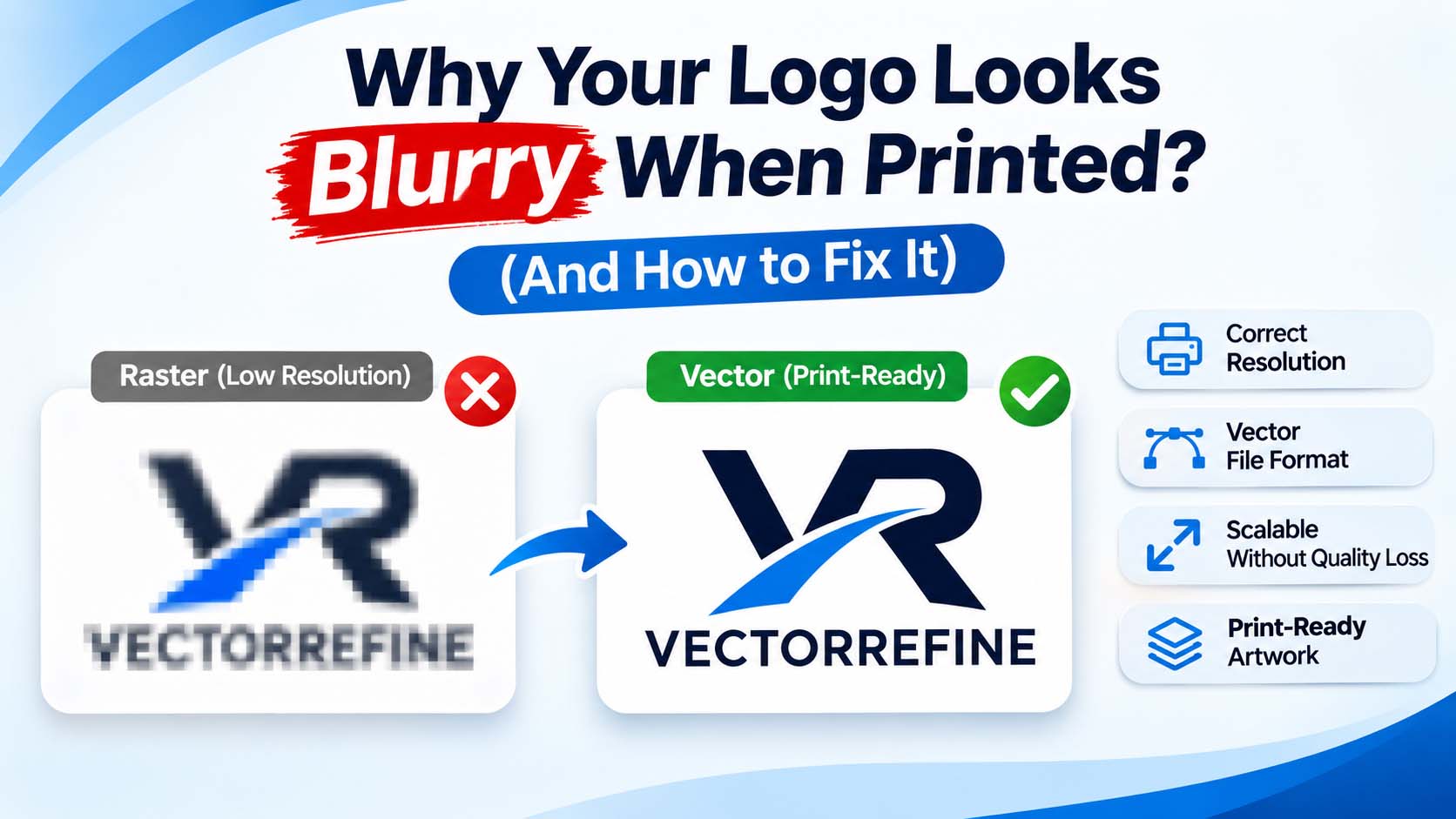
Your logo looks perfectly sharp on your computer, but when you print it on business cards, packaging, uniforms, or promotional materials, the result is disappointing.
The edges appear soft, the lettering looks unclear, and small details seem distorted.
If your logo looks blurry when printed, the problem may be related to image resolution, incorrect file formats, excessive enlargement, or poorly prepared artwork.
The good news is that many of these issues can be prevented by understanding how digital images work and choosing the right artwork for production.
In this guide, we’ll explain why printed logos lose sharpness, how to identify the problem, and when professional vector conversion is the right solution.
Why Does My Logo Look Blurry When Printed?
A logo can look sharp on a screen but appear blurry in print because screens and printing processes reproduce artwork differently.
Most digital images are made of pixels. When the image is displayed at a suitable size, those pixels blend together and appear smooth.
However, if you enlarge a small image for printing, the limited pixel information becomes more noticeable.
For example, a 300-pixel-wide logo may look fine in an email signature but lack sufficient detail when printed across a large promotional sign.
According to Adobe’s explanation of raster and vector graphics, raster images rely on pixels, while vector artwork uses mathematical paths that can be scaled without losing the quality of those paths.
This difference is particularly important when preparing logos for professional printing.
1. Your Logo Has Low Image Resolution
One of the most common reasons a logo looks blurry when printed is insufficient image resolution.
Raster images, including JPG and PNG files, contain a fixed number of pixels.
When an image is enlarged beyond its practical dimensions, the available pixels must be stretched or estimated. This can produce soft edges, jagged curves, and unclear lettering.
What Resolution Is Best for Printing?
For many commercial printing applications, 300 pixels per inch (PPI) at the final print size is a common starting point.
However, the ideal resolution depends on the material, printing process, image type, and viewing distance.
Adobe provides additional guidance on bitmap image resolution for print and web.
Always check your printing provider’s requirements before preparing the final file.
2. You’re Enlarging a Small PNG or JPG Logo
Imagine having a logo saved as a 250 × 150 pixel JPG.
It might look acceptable on a small website header, but enlarging it for packaging or signage can reveal serious quality problems.
Increasing the dimensions or changing the DPI setting doesn’t automatically recover missing artwork details.
How Can You Fix It?
Start by searching for the original design file.
If you have an editable AI, EPS, SVG, or vector PDF file, you may already have the artwork needed for high-quality production.
If the original vector artwork is unavailable, consider a professional manual vector conversion service.
Manual vector conversion involves carefully reconstructing the original artwork as editable shapes and paths rather than simply enlarging the existing pixels.
3. You’re Using the Wrong Logo File Format
Choosing the right file format can make a major difference in production quality.
Different formats serve different purposes.
| File Format | Common Use | Resolution Independent? |
|---|---|---|
| JPG | Photos and digital previews | No |
| PNG | Transparent raster graphics | No |
| SVG | Scalable vector artwork | Yes, for vector elements |
| EPS | Professional vector workflows | Yes, for vector elements |
| AI | Editable Adobe Illustrator files | Yes, for vector elements |
| Printing and document sharing | Depends on the file contents |
A common misconception is that renaming a JPG file or saving it as SVG automatically creates a vector logo.
It doesn’t.
A genuine vector file must contain actual vector shapes, curves, or paths.
For more information, see Adobe’s guide to vector files.
Which Format Should You Send to a Printer?
Ask your print provider which file formats they accept.
For many logo-based production workflows, an editable vector master is useful because it allows accurate scaling and easier preparation for different printing applications.
4. Small Text and Fine Details Can Become Unclear
Sometimes, the problem isn’t simply image resolution.
A logo may contain extremely thin lines, narrow spaces, decorative elements, or small lettering that becomes difficult to reproduce at the intended physical size.
This is particularly important for business cards, clothing labels, embroidery, screen printing, and promotional merchandise.
How to Prevent Detail Loss
Check the artwork at the actual size it will be printed.
Pay attention to letter spacing, stroke thickness, tiny gaps, and decorative elements.
If adjustments are required for a specific production method, create an appropriate production version while preserving the approved original logo.
5. Your Logo Was Exported with Incorrect Settings
Even professionally designed artwork can lose quality when exported incorrectly.
Common problems include:
- Exporting a very small PNG for a large print job
- Using excessive JPG compression
- Rasterizing vector artwork at insufficient resolution
- Exporting at incorrect physical dimensions
- Using unsuitable transparency or print settings
If you’re working in Adobe Illustrator, review the document’s raster effects and export settings before delivering the final artwork.
Adobe explains how rasterization settings affect Illustrator artwork.
How to Fix a Blurry Logo Before Printing
If your logo looks blurry when printed, follow these steps before ordering another print run.
Step 1: Check Your Original Logo File
Find the highest-quality version available.
Look for original editable artwork rather than downloading a small logo from a website or social media profile.
Step 2: Confirm the Final Print Dimensions
Ask your printing company for the required artwork dimensions, file format, and resolution.
The correct settings for a business card may differ significantly from those required for a large banner.
Step 3: Inspect the Logo at Actual Size
Examine the lettering, edges, curves, and fine details.
Don’t rely only on how the logo looks when zoomed out on your monitor.
Step 4: Recreate the Logo as Vector Artwork if Necessary
If your only source is a low-resolution raster file, manually rebuilding the logo can create a cleaner, scalable master.
At VectorRefine, we focus on accurate manual vector reconstruction using Adobe Illustrator.
You can learn more about our approach on the VectorRefine Process page.
Step 5: Request a Print Proof
Before committing to a large production run, ask for a sample or proof.
This helps identify unexpected issues with size, detail, color, or material.
Why Manual Vector Conversion Is Better for Accurate Logo Reconstruction
Automatic image tracing can sometimes create acceptable results for simple artwork.
However, complex logos may require more control.
Auto-tracing can introduce uneven curves, excessive anchor points, distorted lettering, or unwanted shapes.
Professional manual vector reconstruction allows a designer to examine the original artwork and carefully rebuild its important details.
This can help preserve:
- Original logo proportions
- Accurate lettering and spacing
- Smooth, controlled vector curves
- Consistent shapes and colors
- Editable vector elements
- Clean artwork for production
At VectorRefine, every manual vector project is approached with attention to accuracy and the intended final use.
You can explore examples of our artwork on the VectorRefine Portfolio page.
When Should You Convert a Logo to Vector?
A vector master is especially valuable when your logo needs to appear across different sizes and materials.
Common applications include:
- Business cards and stationery
- Company uniforms
- Packaging and labels
- Storefront signs
- Promotional banners
- Screen printing
- Vinyl cutting
- Digital branding
Keep in mind that photographic elements, watercolor textures, and certain effects may still require raster components or special production handling.
Not every design should be simplified into flat vector shapes.
The correct approach depends on the artwork and its intended use.
How Much Does Professional Vector Conversion Cost?
Vector conversion pricing depends on the complexity of the artwork, required deliverables, and production requirements.
Simple logos may require less reconstruction work than detailed illustrations or artwork containing intricate lettering.
At VectorRefine, vector artwork packages start at $45.
Visit our Vector Conversion Pricing page to explore available packages and choose an option that fits your project.
Frequently Asked Questions
Why does my logo look blurry when printed but clear on screen?
A screen may display a small raster logo at a size where individual pixels aren’t noticeable. Enlarging the same file for printing can reveal insufficient resolution, soft edges, and missing details.
Can I fix a blurry logo by increasing the DPI?
Changing the DPI setting alone won’t restore missing image details. The original pixel dimensions and intended print size determine how much useful resolution is available.
Is PNG or SVG better for logo printing?
A sufficiently high-resolution PNG can work for certain printing processes. A genuine vector SVG offers resolution-independent shapes, but the best format depends on the printer’s workflow and the artwork.
Can a low-resolution JPG logo be converted into vector artwork?
Yes. Many JPG logos can be manually reconstructed into editable vector files. The accuracy of the result depends on the quality and complexity of the original image.
Does a vector logo guarantee perfect printing?
No. Vector artwork helps preserve clean scalable shapes, but the final result also depends on printing equipment, materials, production settings, and minimum detail requirements.
Final Thoughts
When a logo looks blurry when printed, the underlying problem is often the quality or suitability of the source artwork.
Using the correct file format, checking image resolution, and preparing artwork for the intended printing process can prevent unnecessary production problems.
For businesses that only have low-resolution logo files, professional manual vector reconstruction can provide a reliable, editable master for future use.
Need a Clean, Print-Ready Vector Logo?
VectorRefine provides professional manual vector conversion, logo vectorization, and artwork refinement services.
Whether you have a blurry JPG, a low-resolution PNG, or an existing logo that needs accurate reconstruction, we’re here to help.
Get Your Free Vector Artwork Quote and tell us about your project.